Using an Orchestra Task
Orchestra supports both Airbyte Cloud and Airbyte server instances. This guide will show you how to trigger Airbyte jobs with Orchestra in seconds.
1. Connect to Airbyte
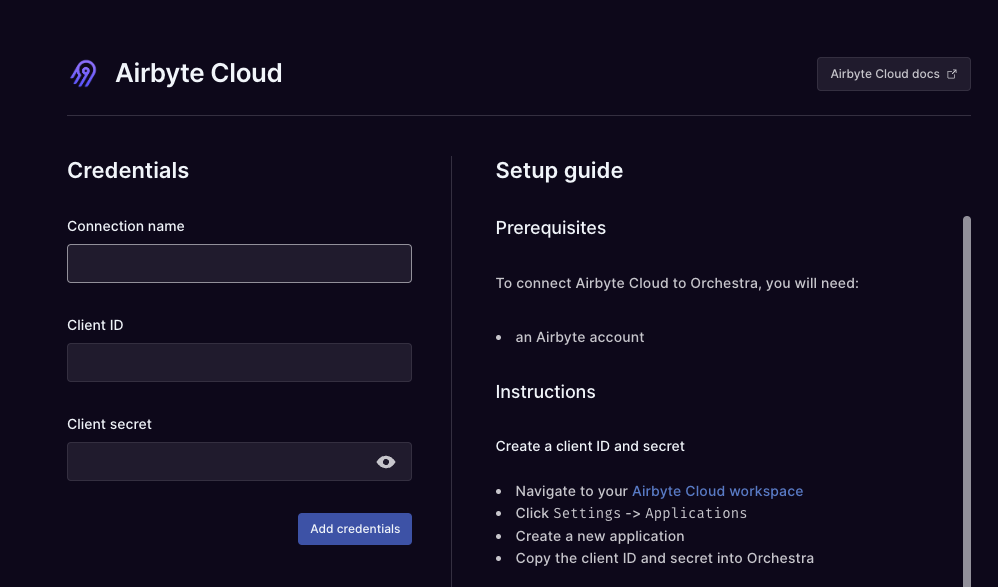
Navigate to Orchestra and create a new integration credential. Select Airbyte Cloud or Airbyte Server, depending on your setup. You will need to create a Client ID and Client Secret to authenticate with Airbyte. Instructions for this can be found here.
2. Create an Orchestra Task
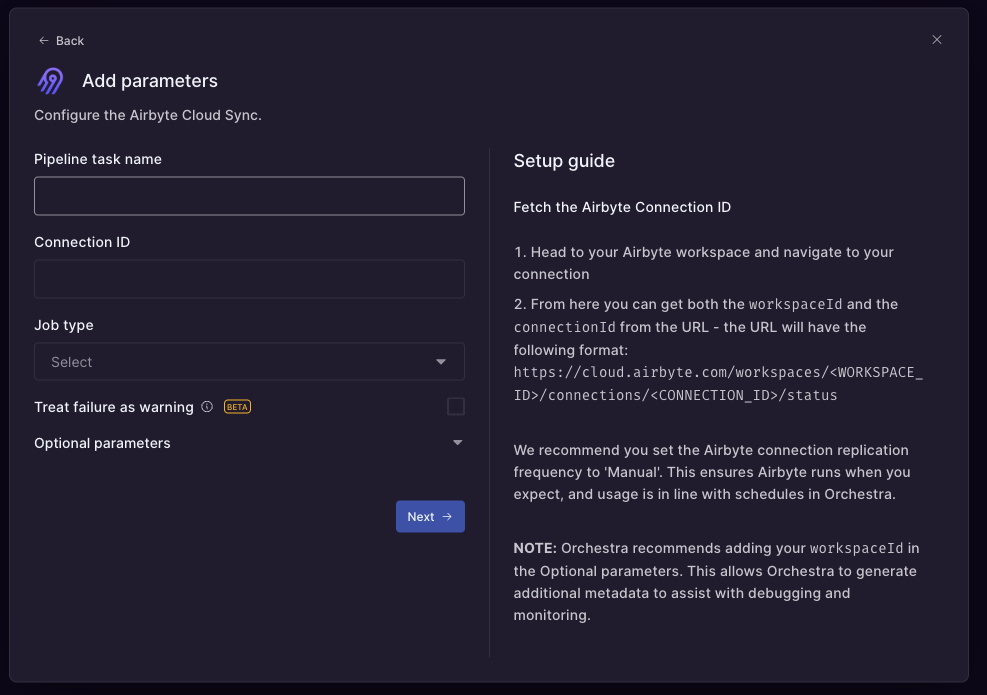
Create an Orchestra pipeline containing an Airbyte task. You can trigger both 'Sync' and 'Reset' jobs with the Airbyte task. The task requires the following parameters:
- Connection ID: The ID of the connection you want to trigger.
- Job Type: The type of job you want to trigger. This can be either 'Sync' or 'Reset'.
3. Run the Pipeline
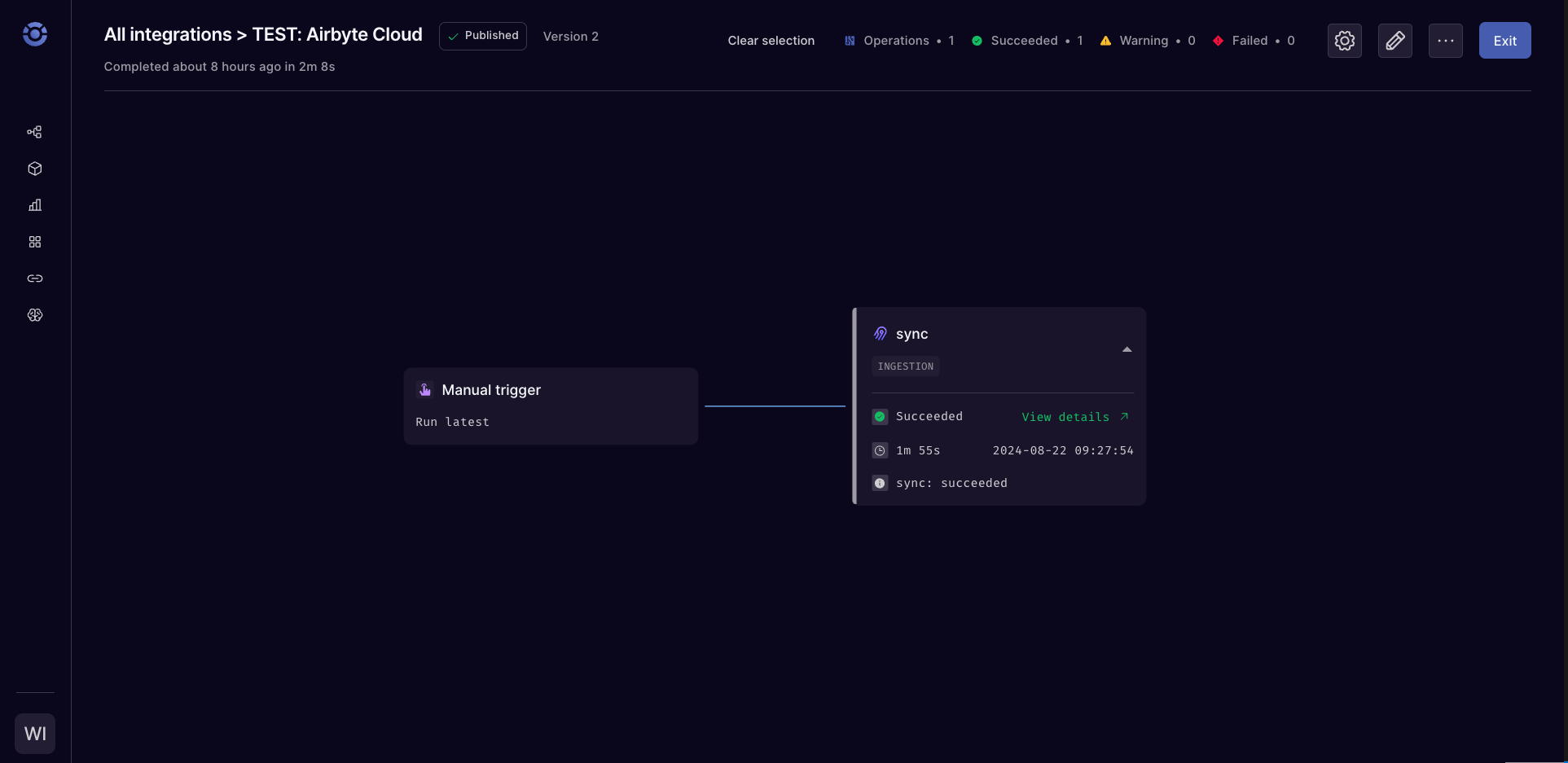
You can manually run your pipeline from the Orchestra UI. Alternatively, you can trigger the pipeline on a cron schedule or via an API call. Once the job is triggered, you can monitor the status of the job in the Orchestra UI.
Next Steps
You can now trigger Airbyte jobs using Orchestra. For more information on using Orchestra, check out the Orchestra documentation.